Scorer Guide
What it does
A scorer for pickleball referees, on your phone. You tap the side that won each rally; it keeps the score, the server and where everyone stands, and follows the USAP 2026 Rulebook.
- Doubles and singles, in standard (side-out, 0-0-2), USAP rally or badminton rally scoring; one game, best of 3 or best of 5; games to 11, 15, 21 or any other score.
- The score to call, shown at the top, with the server, the receiver and each team’s starting server shown on court as you see it.
- The steps before play: a briefing checklist, a clock for late players with the forfeit points, an on-screen coin toss and the warm-up.
- Player tags (a red cap, glasses) to tell players apart without wristbands.
- Time-outs, end changes, penalties, challenges, medical time-outs, stopping play, retirements and forfeits, each by the rules.
- Players confirm the result on the phone, in place of initials on a scoresheet, and you can share it to the tournament desk’s chat.
- Recent matches keeps your last 30 matches with every rally.
- Match analysis, an extra: how a match went, player by player, and an analysis mode for a player or coach keeping score. See Analysis.
- No account and nothing uploaded. Once it’s open, scoring works without signal, and the screen stays on.
New to it? Tap Tutorial on match setup and choose Referee for a short practice match.
Learning the rules? Practice with the Rules quiz: questions for players and referees, each with the rule behind the answer.
Before a match
- Before the day, open the scorer and add it to your home screen (see Home screen), then open it once from the new icon. The first visit downloads the scorer, which takes a few seconds on 4G and longer on a crowded signal at the venue; after that it opens quickly.
- Charge the phone. The scorer keeps the screen on while you score.
- Decide which way up to score. Refereeing works either way up: upright (portrait), the teams stay side by side, with each team's time-out under its half and Undo and More at the bottom, in reach of your thumb; sideways (landscape) gives longer names more room. A name too long for its place on the court is shortened to fit: Kelvin Tan Yuang Leong becomes Kelvin Tan YL, and Mohammed Hafiz bin Abdullah becomes Mohd Hafiz. Analysis mode and the tutorials work either way up too. To turn the phone, it must be allowed to rotate: on iPhone, turn off Portrait Orientation Lock in Control Centre; on Android, turn on Auto-rotate.
- Open the scorer where there’s signal, before you walk to a court with poor reception. Once it’s open, scoring needs no internet.
- Don’t use a private or incognito tab. Everything is lost when it closes.
1. Match setup
Set up the match before you go on court: off court, or as the players arrive.
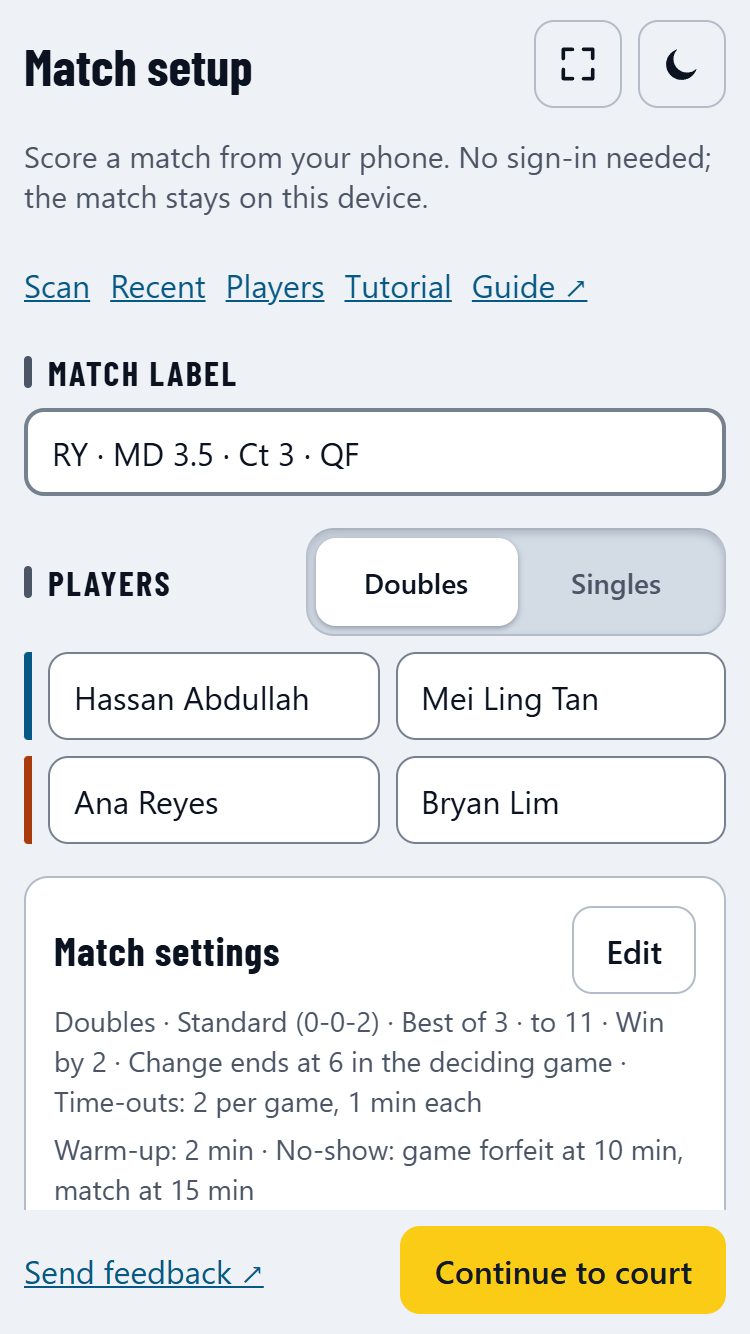
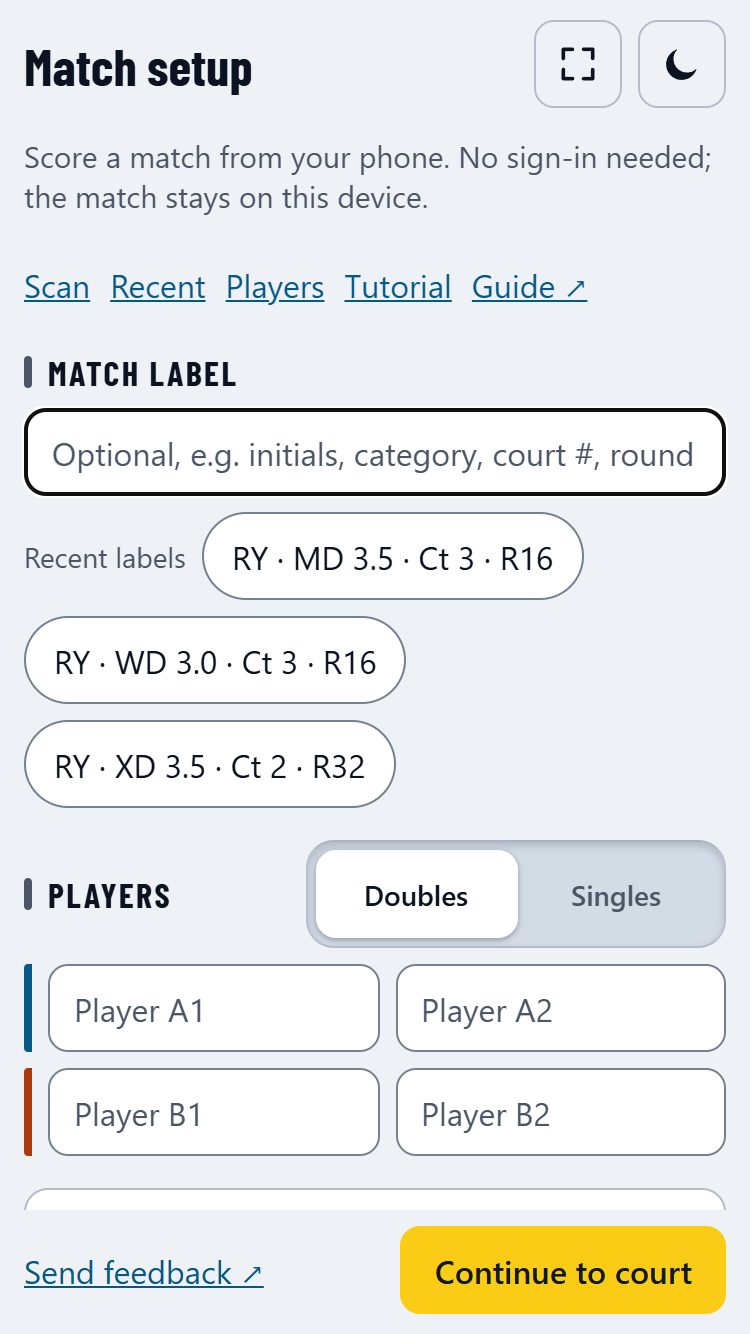
- A match from the desk: if the desk set your match up, tap Scan at the top of match setup and point your phone at the code it shows (or paste the link it sent into the box below the camera, and tap Open link). The label, the players and every setting fill in: check them, then Continue to court. Your own choice of Referee or Analysis mode stays yours. With a match already on your phone, it asks first.
- Match label (optional): whatever your tournament director asks for, such as your initials, the category, the court and the round. It heads the result when you share it. While you type, your recent labels show under the field: tap one, then change the part that’s different, usually just the end. If the match’s teams came from the desk, the label the desk gave them (such as Court 3) is offered first.
- Players: choose Doubles or Singles, and type each name as registered. Names from your recent matches are offered as you type. Left blank, a player shows as “Player A1”. In doubles, a pair from a recent match is offered too, such as “Priya Nair & Joyce Ong”: one tap fills both names.
- Team name (doubles, optional): if the tournament names its teams, type it in the box above the team’s players, such as Smash Bros. A team from the desk or your player list brings its name with it: tap the box and its teams are offered, narrowed as you type a team’s name or a player’s, and one tap fills the name and both players. The name heads the team on the briefing, in the result you share and in the analysis. On court, players are always named one by one.
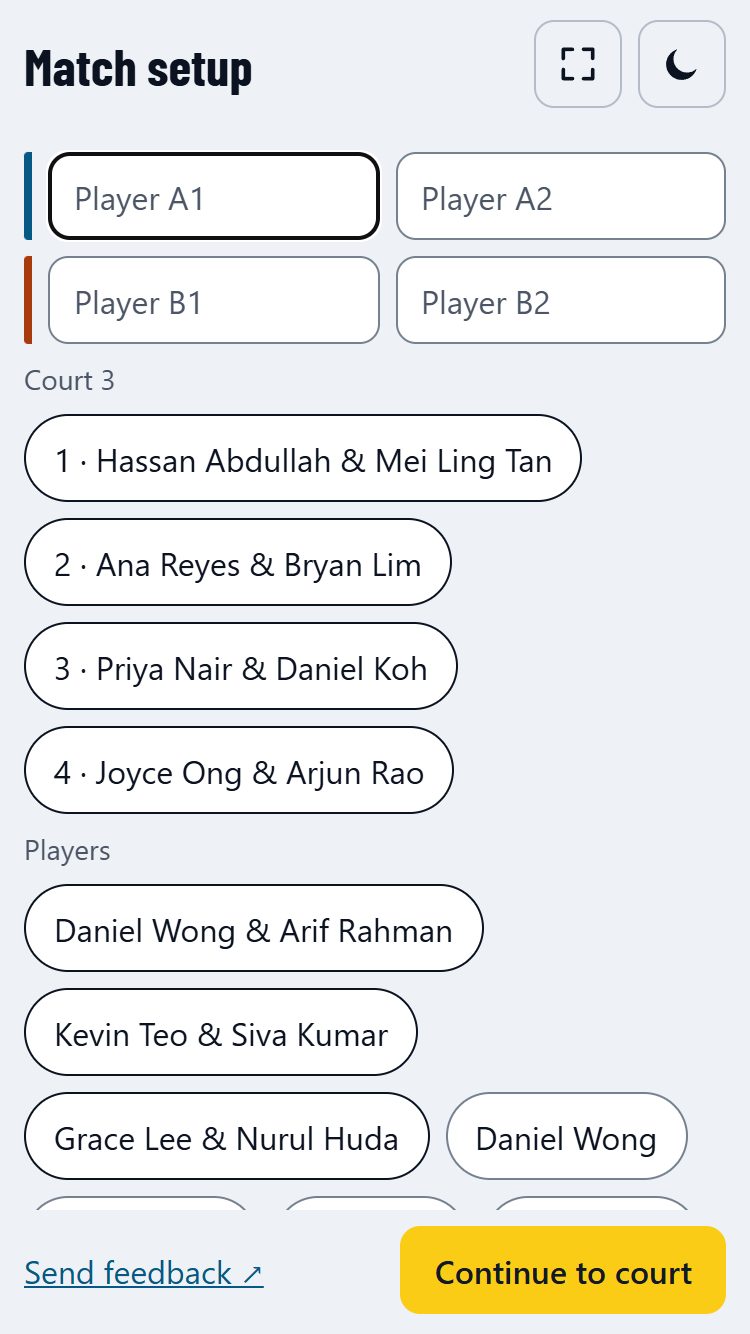
- Teams from the desk: if your tournament director sent your court’s teams (see Player list, below), tap the first name box and they’re offered first, numbered as on the schedule: 1 · Priya Nair & Joyce Ong, or with the team’s name, 1 · Smash Bros (Priya Nair & Joyce Ong). Tap the first team for the match, then the second. A team already playing on the other side isn’t offered. Typing part of a team’s name finds it too.
-
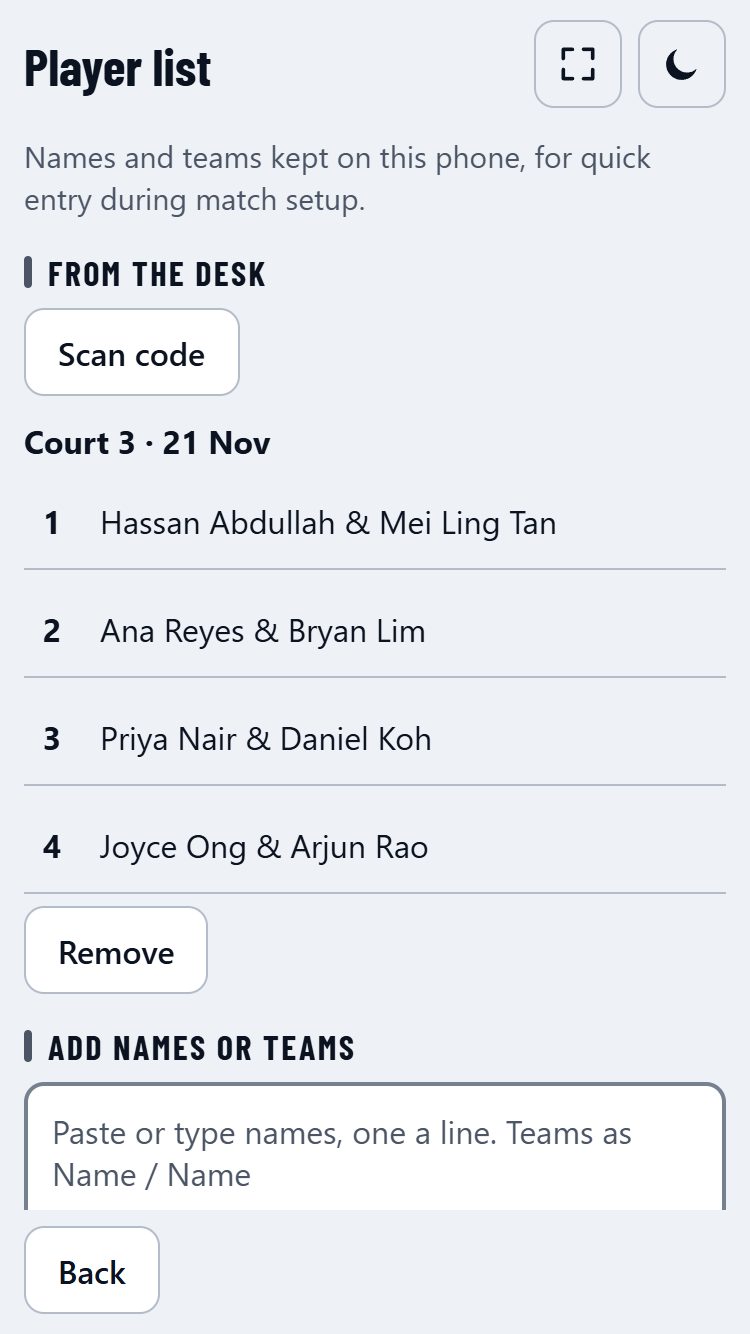
Player list: to type names before the day rather than before each
match, tap List beside Players on match setup. Paste a list from a draw sheet
or a message (one name a line, or separated by commas; a team as
Name / Name on its line, with its name first if it has one:
Smash Bros: Name / Name), or add names from your recent matches. Pasting a
team again with a name gives it that name. Names and teams on the list are offered
first, and stay after their matches leave Recent matches. Clearing recent matches leaves
the list; clear it from its own screen.
- Your court’s teams: when the desk shows you a code, tap Scan code here and point your phone at it. The teams join your list under the court’s name, numbered as on the schedule. Scan inside the scorer rather than with the camera app: on an iPhone the camera app opens Safari, and a scorer on your home screen keeps its own list. Sent the link in a message instead? Copy it into the box on the player list and tap Add the teams from the link.
- After the event, Remove under the court’s teams takes them off your list. If the desk sends the same court again, the new teams replace the old.
- Match settings: the format in one summary. Tap Edit to change the scoring, the number of games, points to win, the win rule, the end change, time-outs, the warm-up and the no-show times. The next match starts with the same settings. The first setting, Mode, stays on Referee: Analysis is for a player or coach keeping score (see Analysis mode).
- Tap Continue to court.
2. On court
The steps before the first serve, in the order you do them. The screen scrolls to each one as you go.
Meet the players
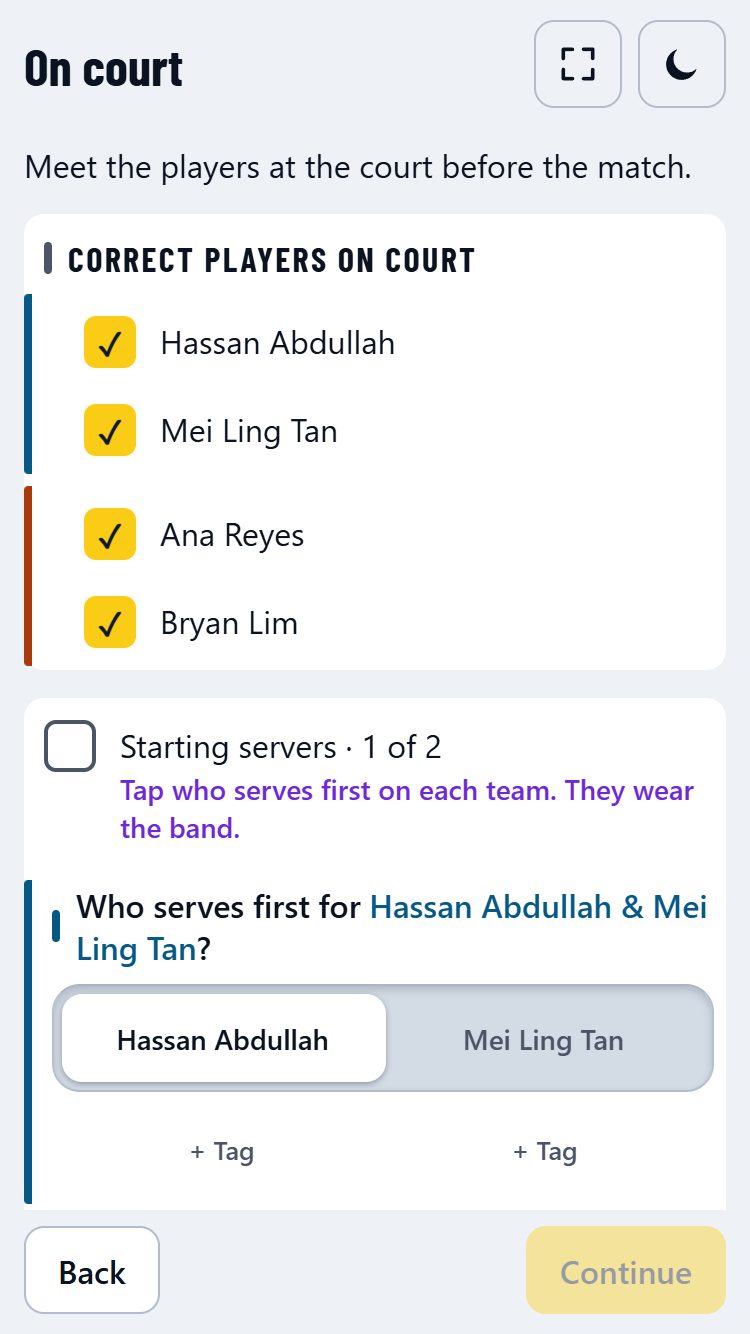
- Tick each player as you check they’re the right player. Someone missing? See When players are late. The rest of the briefing stays greyed out until you’ve ticked at least one player.
- Starting servers (doubles): for each team, tap the player wearing the starting server’s band, the names you’d circle on a scoresheet. Each team has one whoever wins the toss, so this comes before it, as in the USAP Officiating Handbook. A team can still change it before the first serve, and between games. The item ticks itself once both teams have one; tap its box before then and it shows the team still to pick.
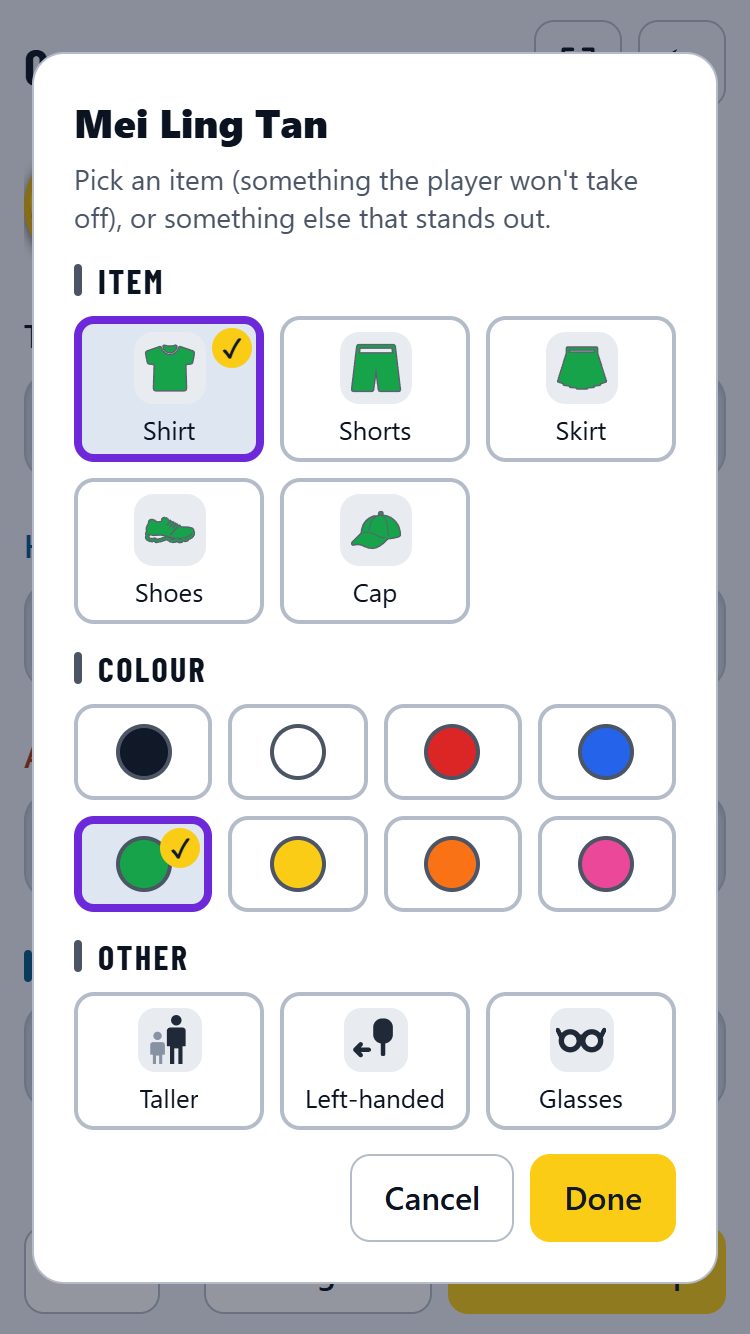
- Tags (optional): tap + Tag under a name to pick what tells that player apart, such as a red cap, or Taller, Left-handed or Glasses. Tags show beside their names while you score, so you can spot who’s who at a glance. In singles the + Tag is beside each player’s name.
- Inspect the paddles. The USAP ↗ and UPA-A ↗ links open the approved paddle lists.
- Explain the format: the line under it says what to tell them.
- Point out rule changes and court hazards, then explain the referee duties and the line-calling duties. Continue needs every item ticked, every match, even with players you briefed earlier in the day. Something missed? Tap Continue anyway: it says what’s still to do and takes you to it.
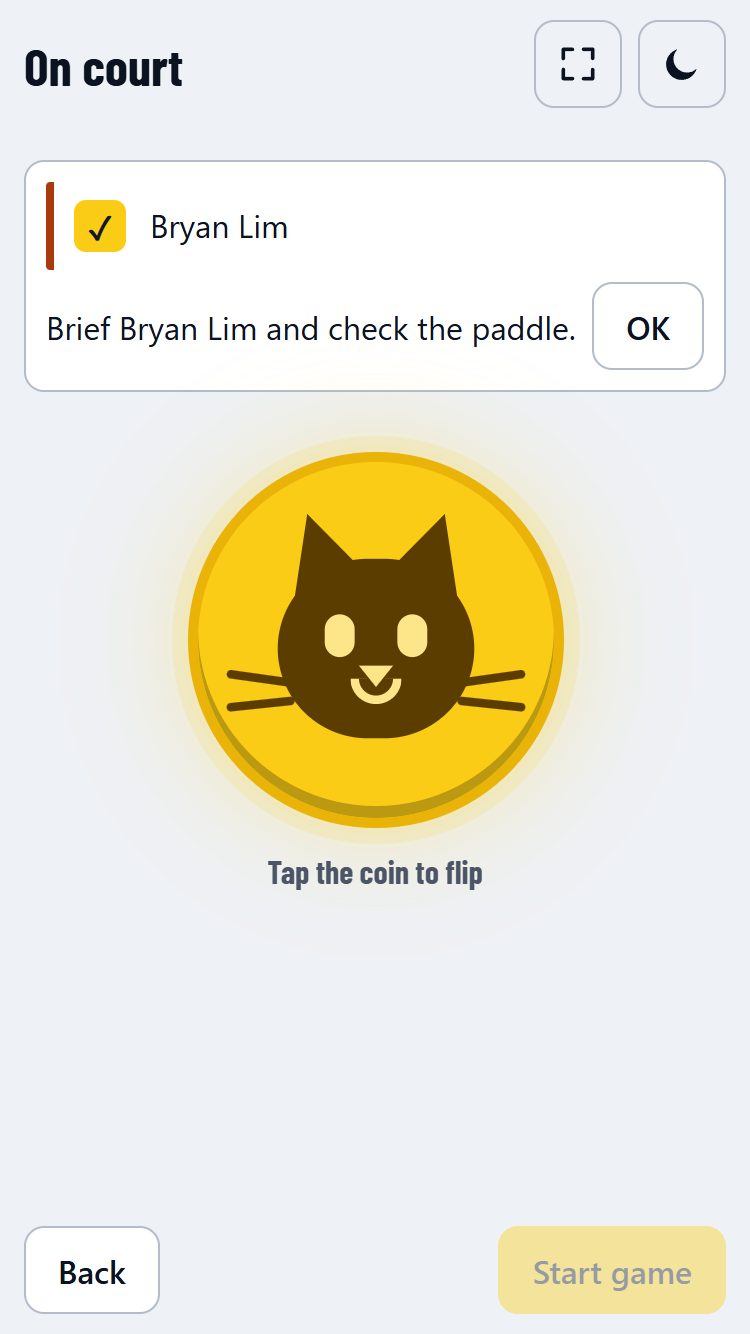
Toss the coin
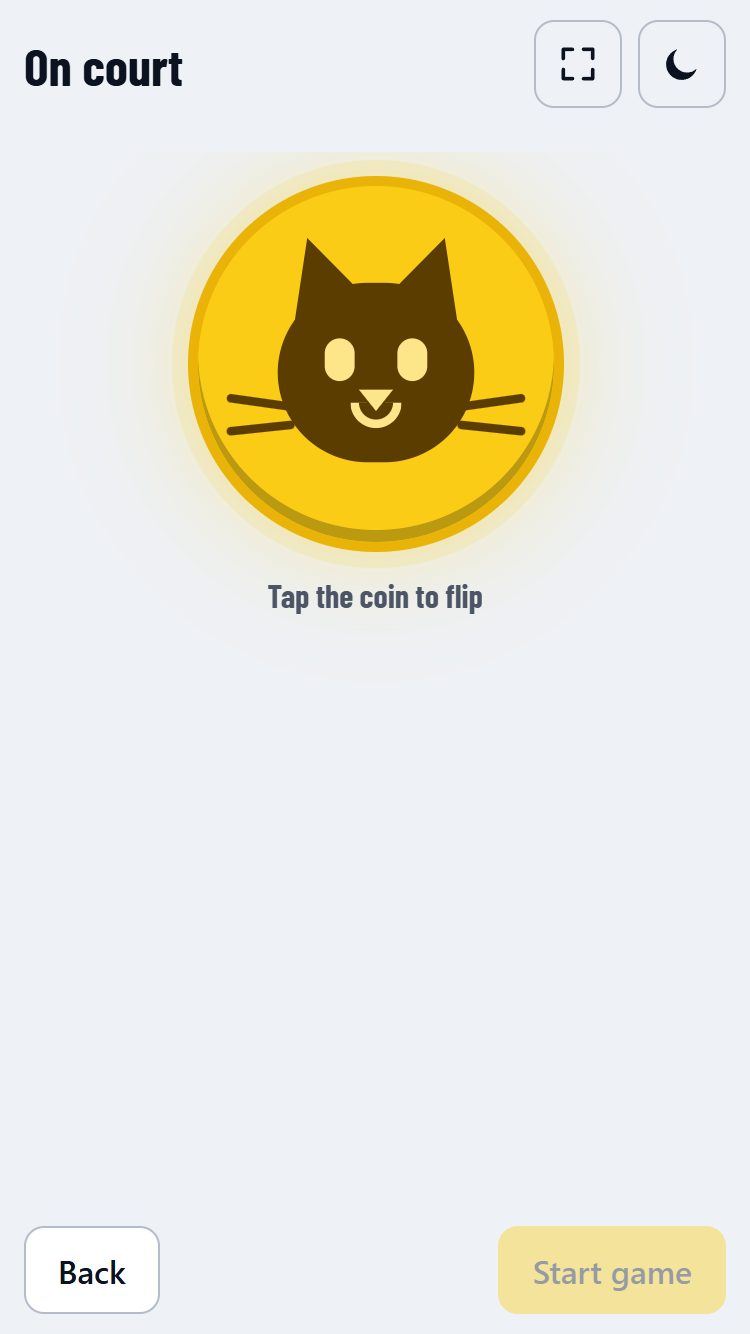
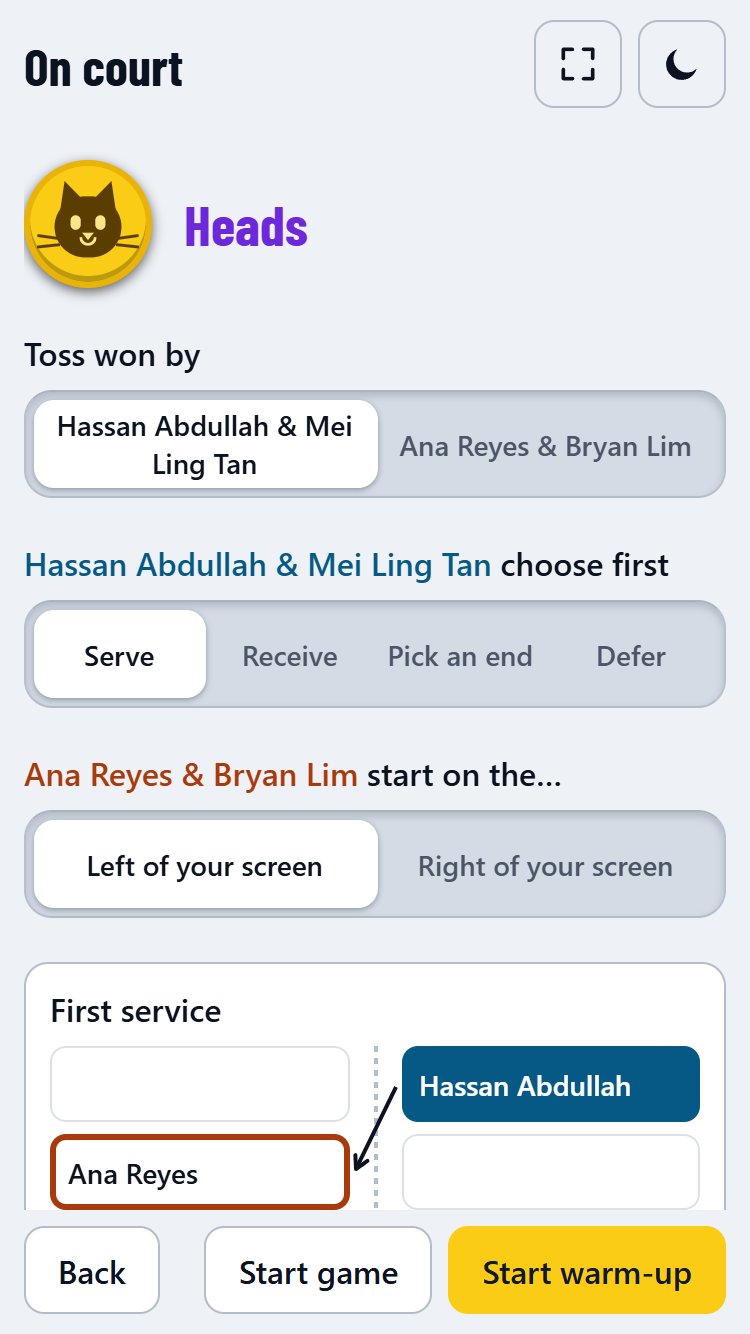
- Tap the coin, or the words by it, to flip. The players call it as it spins.
- Toss won by: tap the team that won.
- They choose first: Serve, Receive, Pick an end or Defer (the other team chooses first). The other team then makes the remaining choice. Ends are given as the left or right of your screen, as you’ll hold the phone while scoring.
- Players may also choose to warm up first and make their choices after the warm-up.
Check the first service
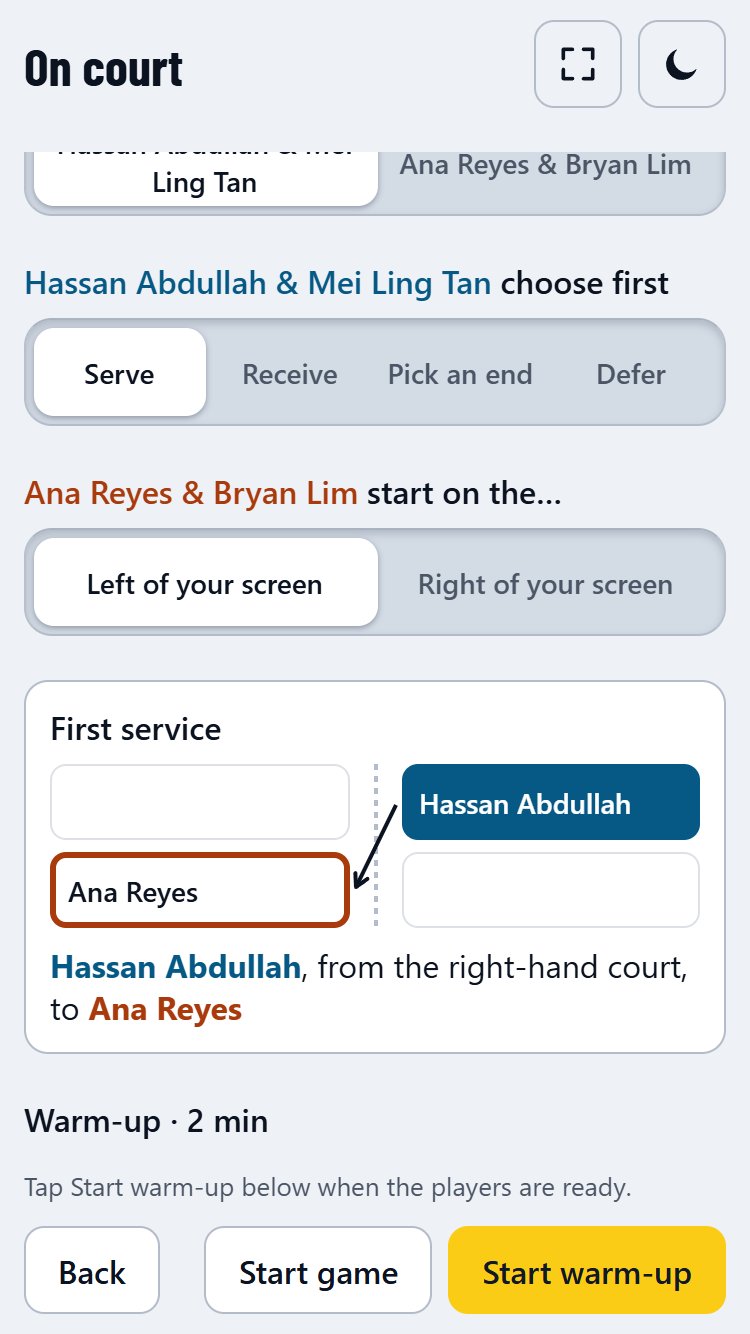
Once the choices are made, the First service card shows who serves, from the right-hand court, to whom: in doubles, the serving team’s starting server to the other team’s. Check it with the players.
Warm up, then start
- Tap Start warm-up when the players are ready. The clock counts down (2 minutes unless match setup says otherwise); End warm-up stops it early.
- Tap Start game. Hold the phone either way up.
When players are late
A common one: a partner is still finishing a match on another court. Don’t hold everyone up. The briefing, the coin toss and the warm-up go ahead with whoever is there; only the first serve waits for everyone. The scorer times the wait from when the match was called and tells you when the forfeit points pass.
Start the clock
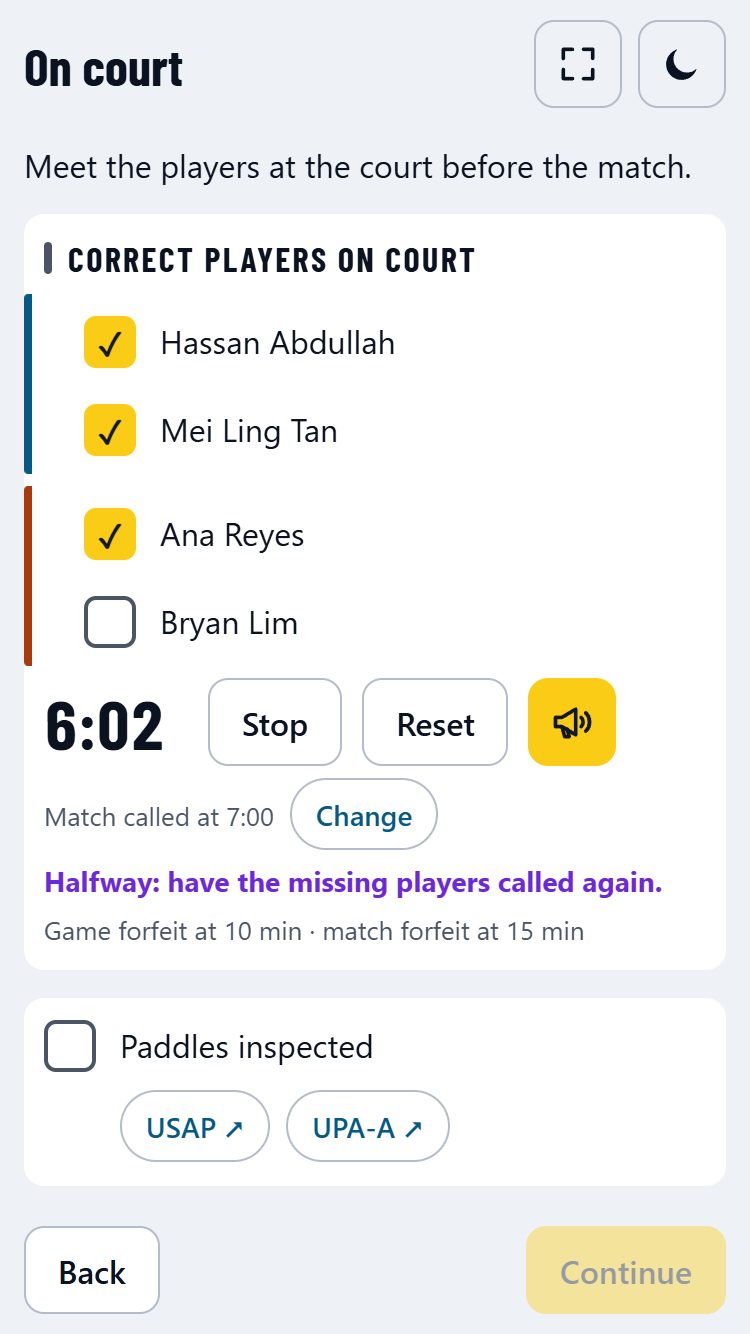
- Tick the players who are there. Under the names, tap Start no-show timer and say when the match was called: Just now, or 2, 5 or 10 minutes ago. Called at a different time? Tap Change.
- Carry on with the briefing. Continue needs the clock running and at least one player from each team there; if a whole team, or a singles player, is missing, it waits.
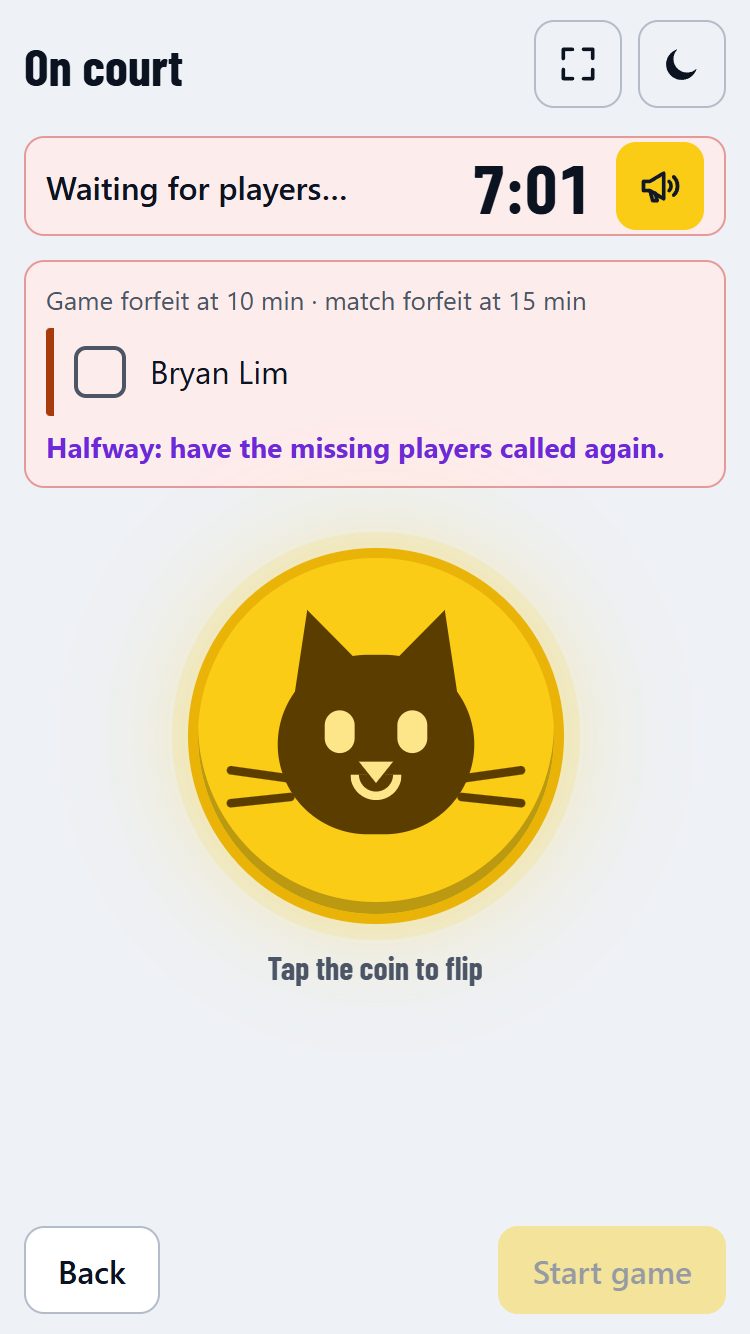
- Toss the coin and warm up as usual. A red strip at the top keeps the clock in view: tap it to go back to the late player’s row. Start game stays off until everyone is there.
While you wait
- Ask the desk to call them: the yellow megaphone, beside the clock and in the red strip, opens your phone’s share sheet with a message for the tournament desk’s chat: the match label (or the teams), who to call, when the match was called and the next forfeit time, such as “Called at 6:57 · game forfeit at 7:07”. Times of day stay right however late the desk reads it. Pick the desk’s chat and send. “Desk asked at” then shows the time; tap again to ask again. Where there’s no share sheet, the message is copied to paste.
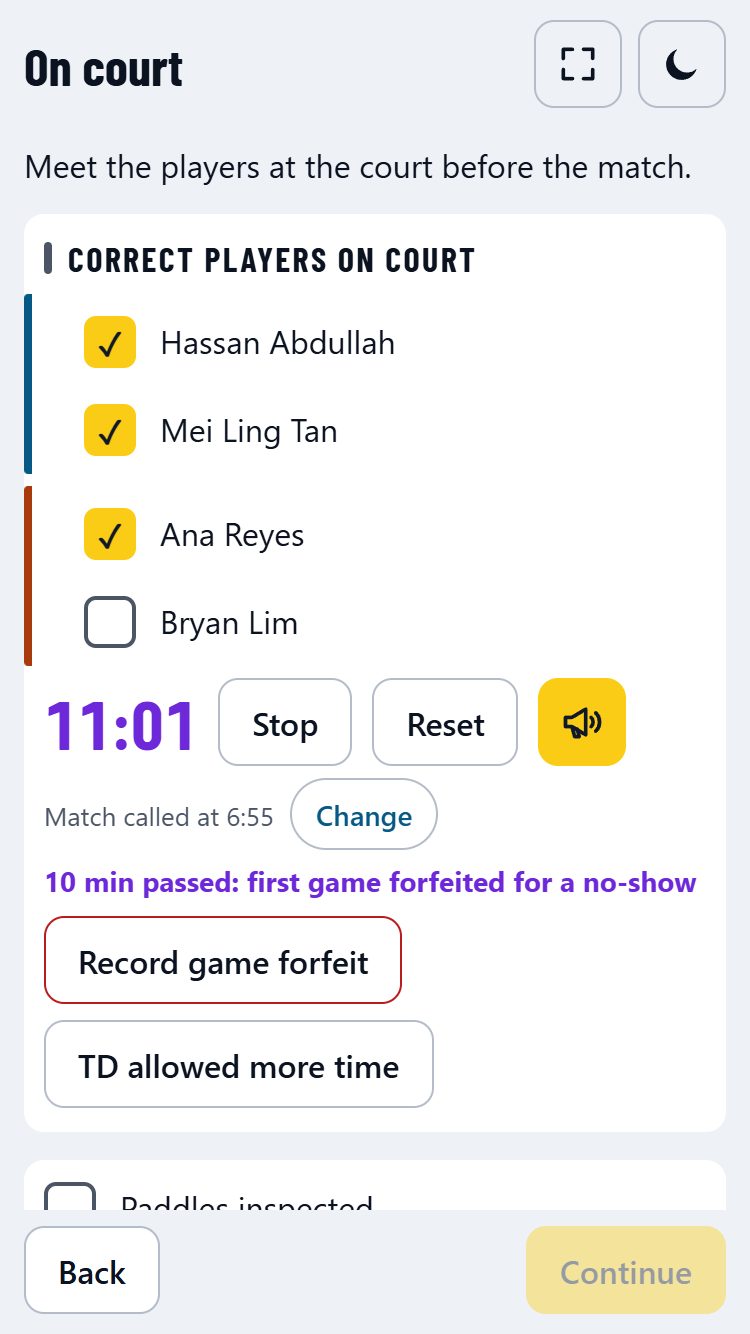
- Halfway to the game forfeit time, you’re reminded to have the missing players called again: the megaphone is the quick way.
- At the game forfeit time (10 minutes unless match setup says otherwise): Record game forfeit gives game 1 to the other team, and play starts at game 2. Changed your mind before play starts? Undo takes it back.
- At the match forfeit time (15 minutes, or 10 in a one-game match): Record match forfeit ends the match there and then.
- The TD allows more time? Tap TD allowed more time and pick 5, 10 or 15 minutes: both forfeit times move.
- Nothing is forfeited on its own: you’re offered each choice, and record it only when it’s decided. Players missing from both teams? See below.
When both teams are late
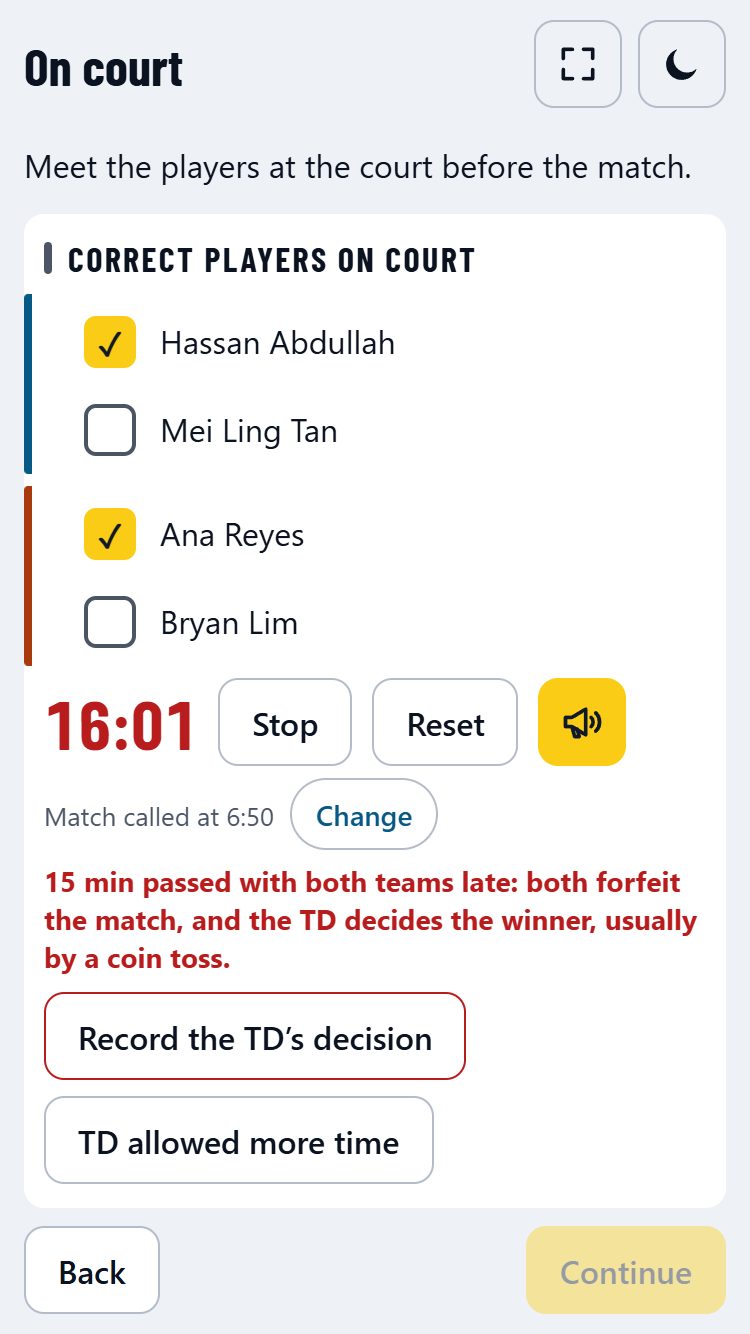
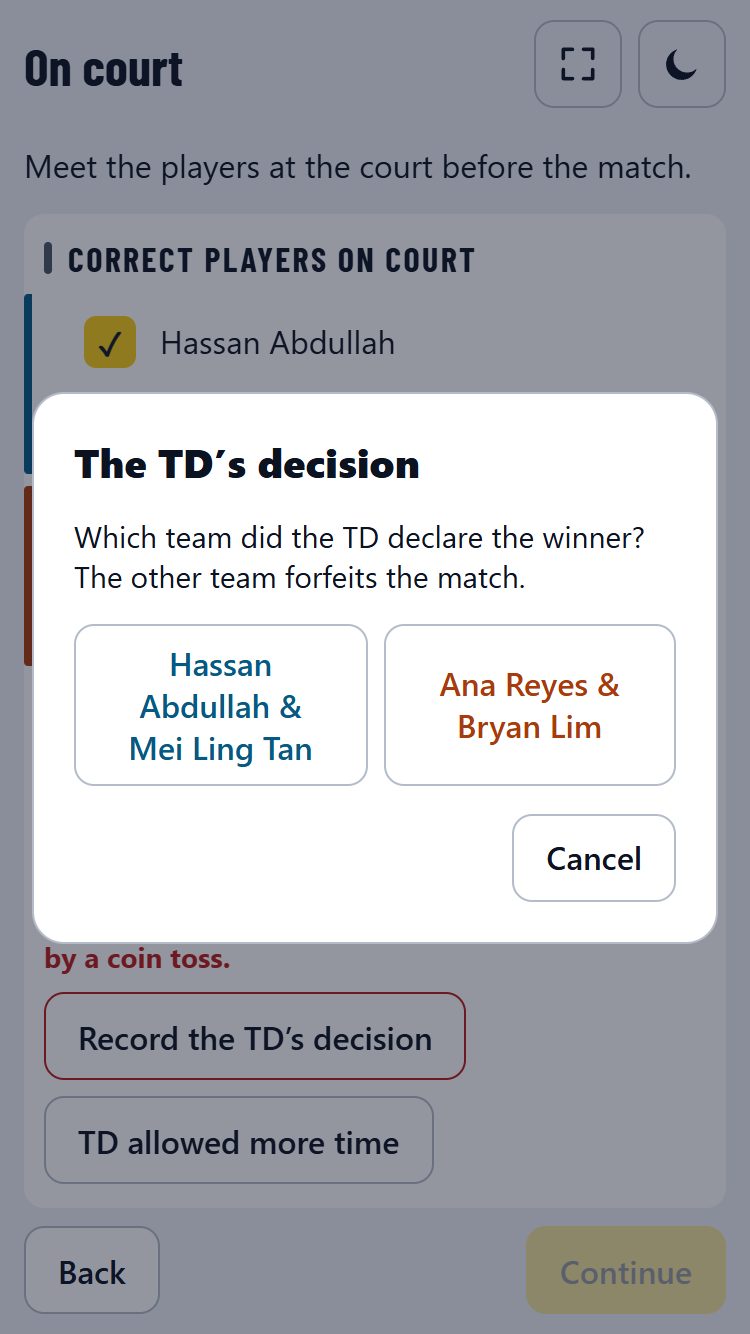
When players from both teams are still missing, the forfeits fall on both teams, so there’s no one team to record them against, and the TD decides.
- At the game forfeit time, the scorer says so and asks you to check with the TD how to go on. Nothing is recorded; only TD allowed more time is offered.
- At the match forfeit time, both teams forfeit the match and the TD decides the winner, usually by a coin toss. Tap Record the TD’s decision and pick the team the TD declared the winner: the other team forfeits the match. It’s kept in Recent matches, ready to confirm and share like any other result.
When they arrive
- Tick each late player as they arrive: the time is kept.
- When the last one is there, the clock stops and you’re reminded: “Brief Bryan Lim and check the paddle.” Brief them together, check the paddles, then tap OK.
- Start game turns on. The warm-up isn’t run again for them.
Afterwards, Recent matches shows how long you waited, any time the TD allowed, and a forfeit for lateness as “By forfeit · No-show”. The forfeit times are set in match setup, under Edit.
3. Scoring
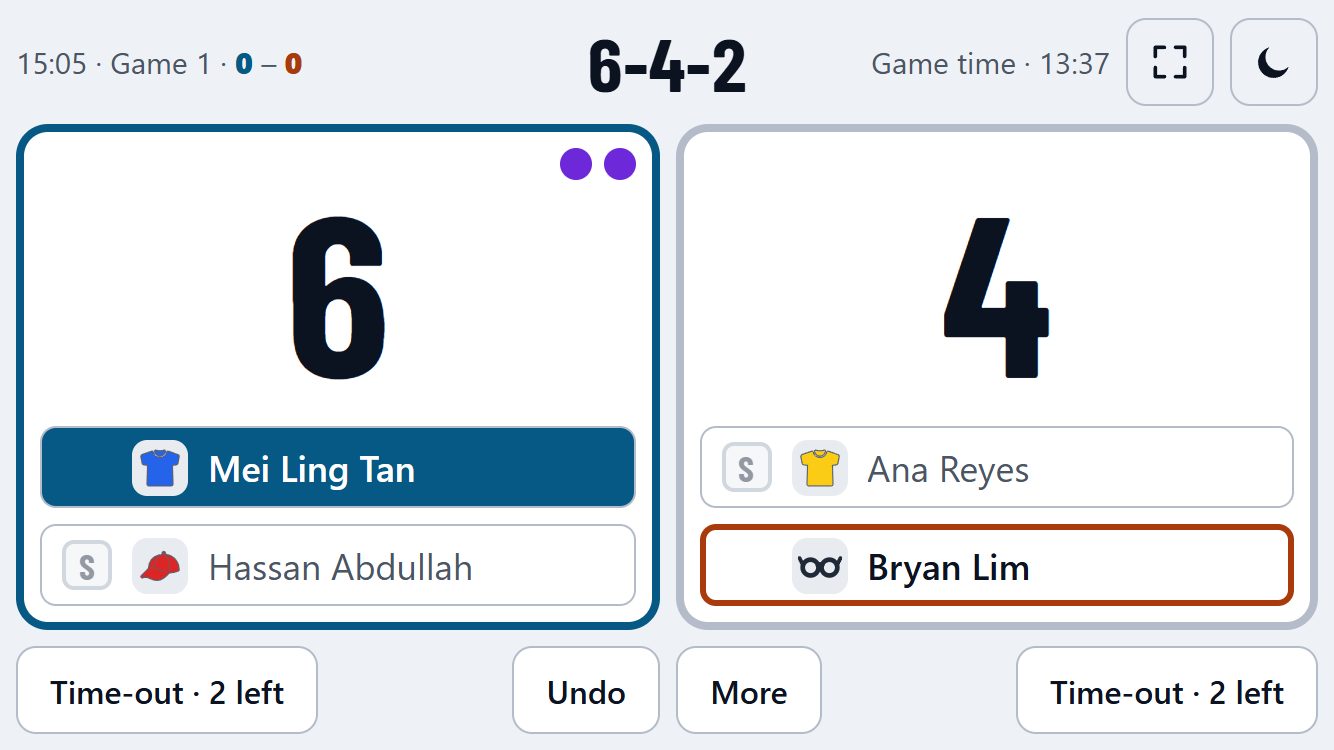
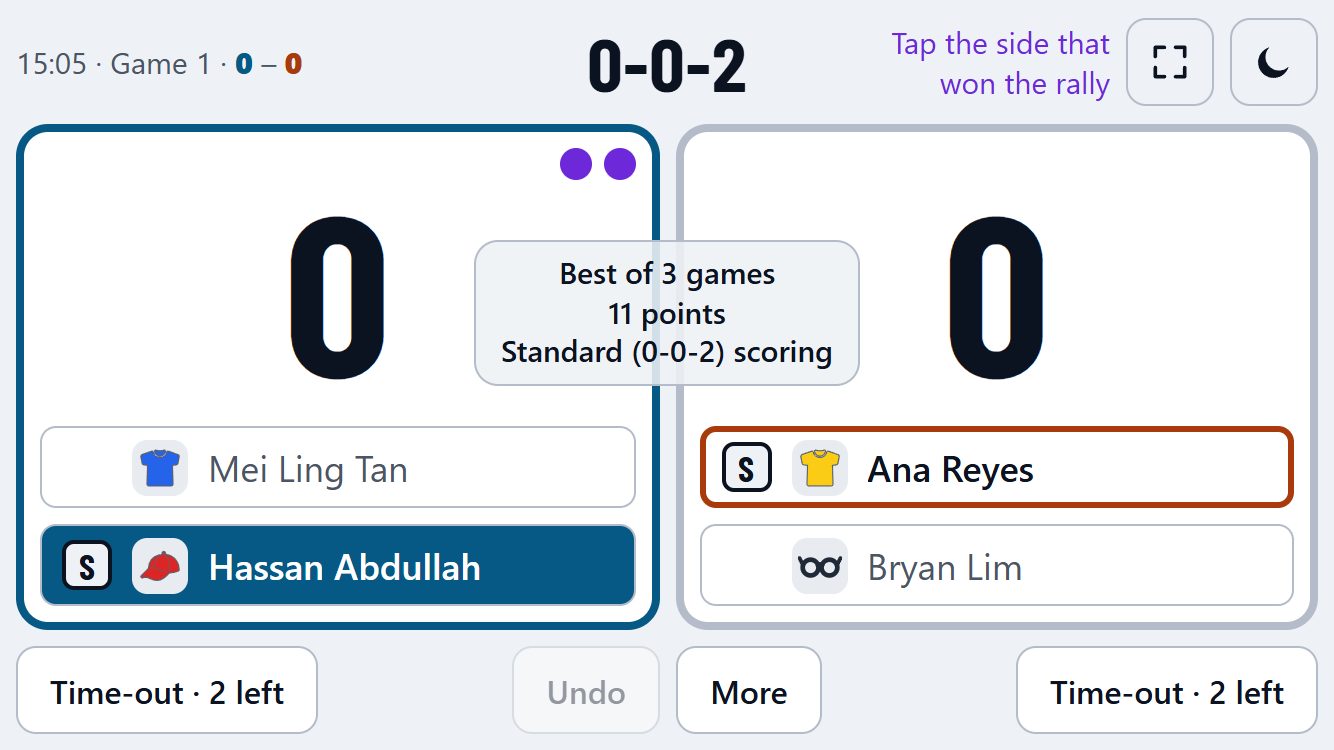
- Check the format before the first serve. Until the first rally, the games, the points and the scoring show between the two scores. If they aren’t what your TD set for this match (a knockout left on the pools’ one game to 11, say), set the match up again: More → New match. The panel goes with the first rally; tap it to hide it sooner (that tap isn’t a rally).
- Tap anywhere in the half of the team that won the rally. The score, the server and the players’ courts update, and the phone buzzes (Android).
- Call the score shown at the top: the serving team’s score, the receiving team’s, then the server number in doubles (“6-4-2”). The dots in the serving team’s corner show the server number too.
- Each team’s courts are shown as you see them. The server is filled in their team’s colour, the receiver outlined. S marks each team’s starting server: at an even team score they should be in the right-hand court.
- Tapped the wrong side? Tap Undo. It takes back the last rally, or whatever you recorded last.
- Time-outs: tap Time-out on the team’s side. It shows how many they have left and times the minute.
- End changes: when it’s time to change ends (at 6 in a game to 11, by default in the deciding game), the scorer shows it. The players change ends, then tap Ends changed.
Between games
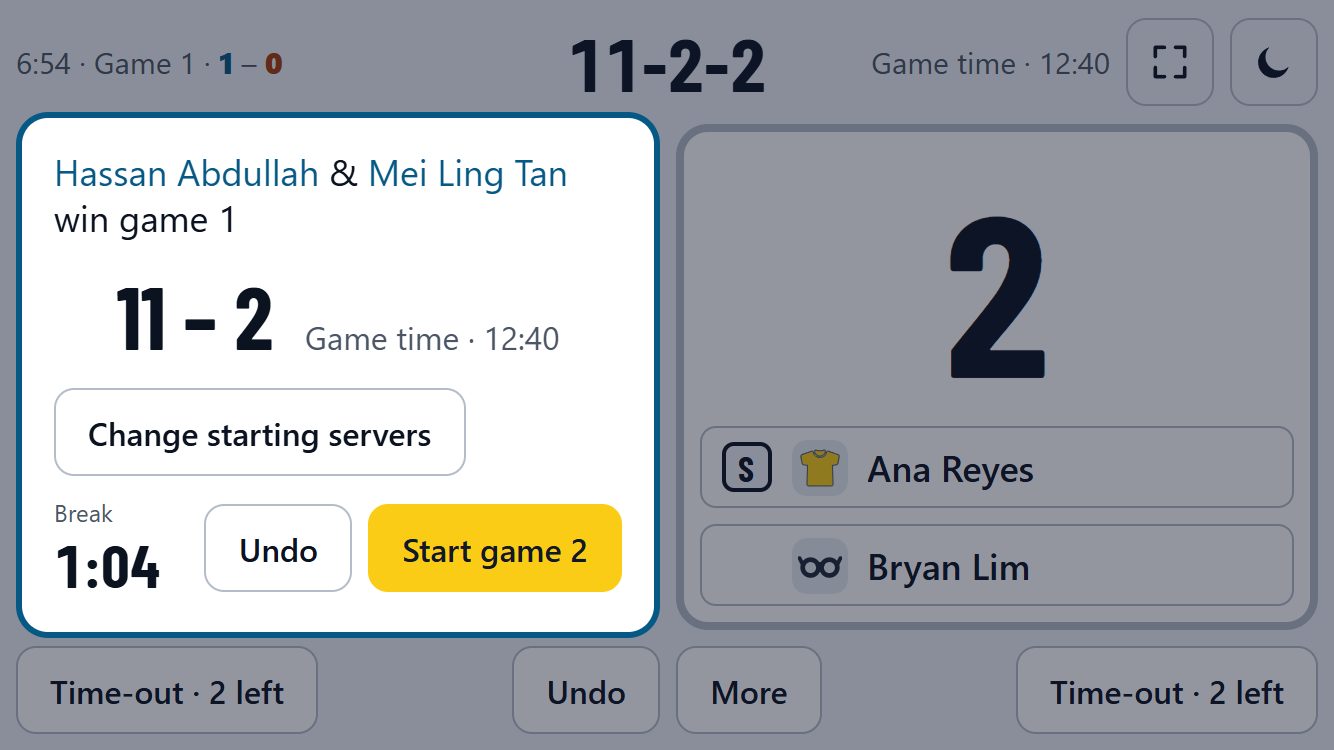
- The break clock counts down the 2 minutes between games.
- Teams may change their starting server between games. Ask each team; if one changes, tap Change starting servers and pick the next game’s first server and first receiver.
- Tap Start game 2. Service passes to the other team.
- Check the bands before the first serve. Until the game’s first rally, each team’s starting server shows between the scores. If someone else is wearing the band, tap that team’s name to swap the partners. Before a deciding game played to a different score, or the only game that changes ends, it says so too. Tap the panel anywhere else to hide it.
More
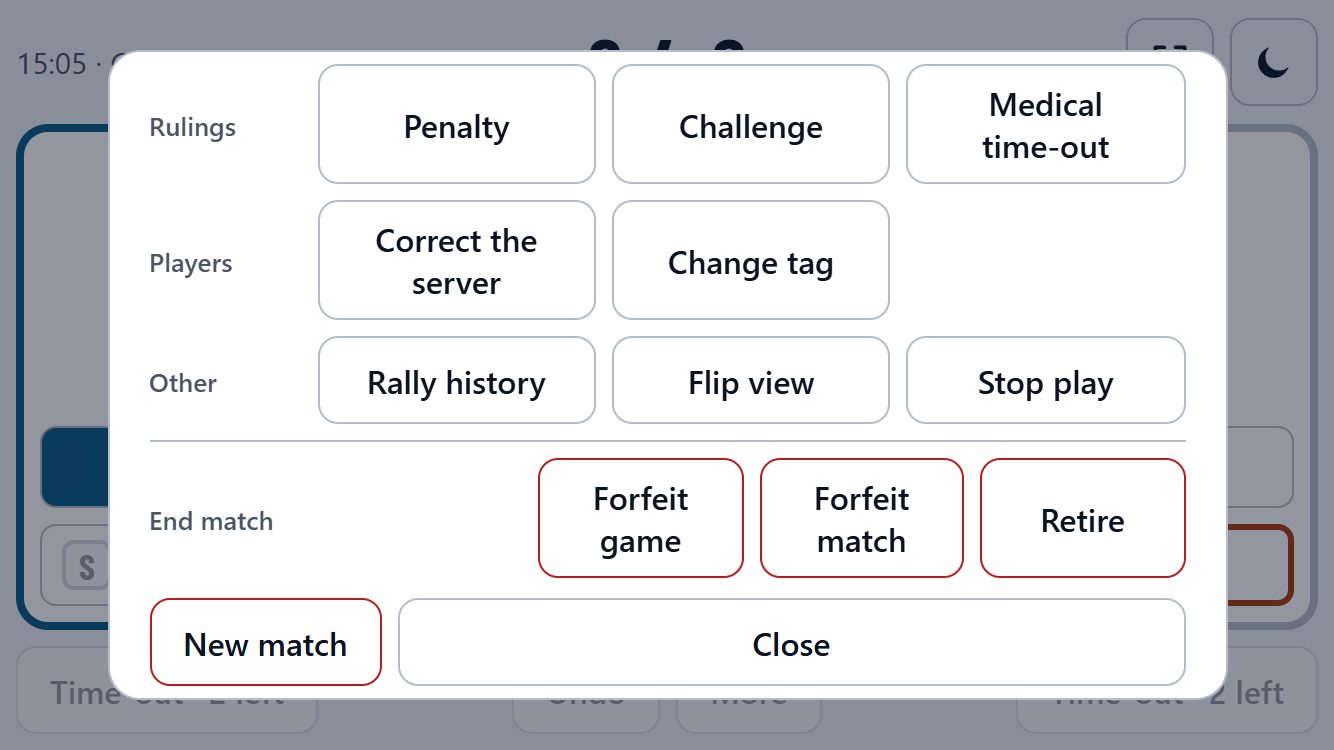
What’s in More
- Penalty: a warning, technical warning or technical foul for a player, with the reason. The score changes as the rules say.
- Challenge: the head referee’s decision on a challenged call; upheld or withdrawn challenges are charged as the rules say.
- Medical time-out: pick the player. The 15 minutes start when medical help arrives, and pause while the player travels to or from treatment.
- Correct the server (doubles): when the wrong player is serving.
- Change starting server: a team that meant to change at the break may still do so before the game’s second rally. Shown only until then.
- Change tag, for example when a cap comes off.
- Rally history: every rally and event, game by game.
- Flip view: shows the court turned round, when you watch from the other side.
- Stop play: a referee time-out (blood, a court hazard) or a suspension (weather, light). While play is suspended you can Hand over the match to another phone (see Hand over).
- Forfeit game, Forfeit match, Retire: ends a game or the match as the rules say.
- New match: ends this match without the players confirming. It’s kept in Recent matches.
Handing a match to another phone
When a suspended match resumes on another court with another referee, or your phone is running low, move the match to another phone. The whole match goes, every rally, time-out, tag and the label, in a QR code from one phone to the other: nothing is uploaded.
On your phone
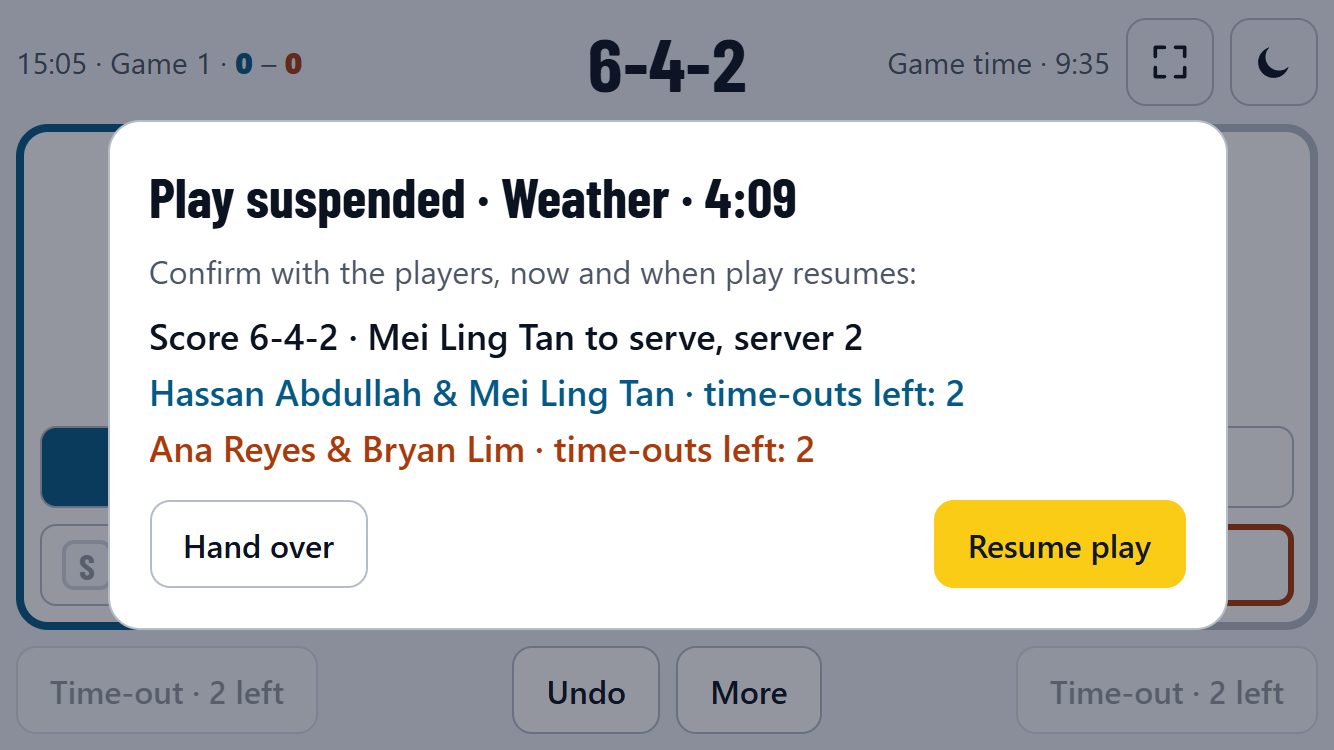
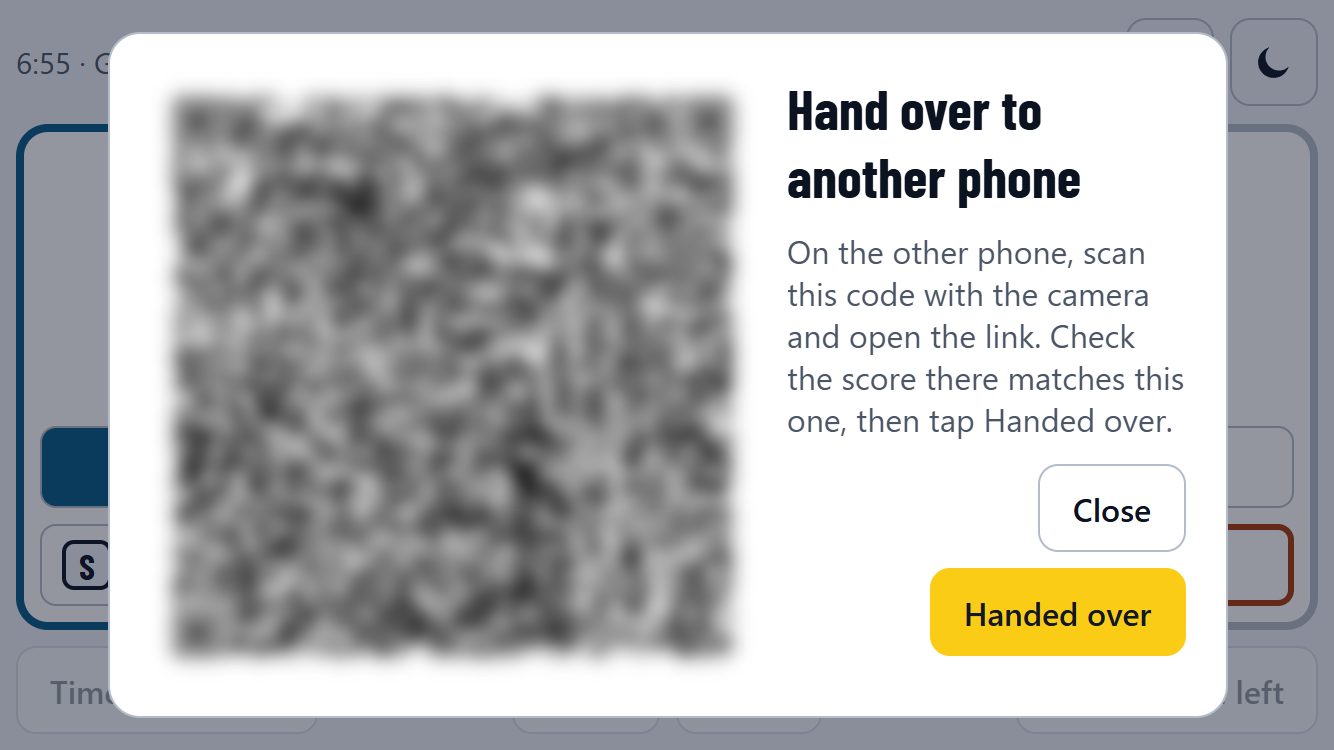
- Suspend play: More → Stop play → Suspend match, with the reason (Weather, Light or Other). Hand over is offered only while play is suspended, so nothing can be recorded halfway through. A referee time-out is for short stops and doesn’t offer it.
- On the Play suspended panel, tap Hand over. A QR code appears.
On the other phone
- Open the camera, point it at the code, and tap the link it shows. The scorer opens with the match: “Match received. Check the score with the players.”
- If that phone already has a match of its own, it asks first: Replace (a played match is kept in its Recent matches) or Keep this phone’s match.
- Check that the score there matches yours.
Back on your phone
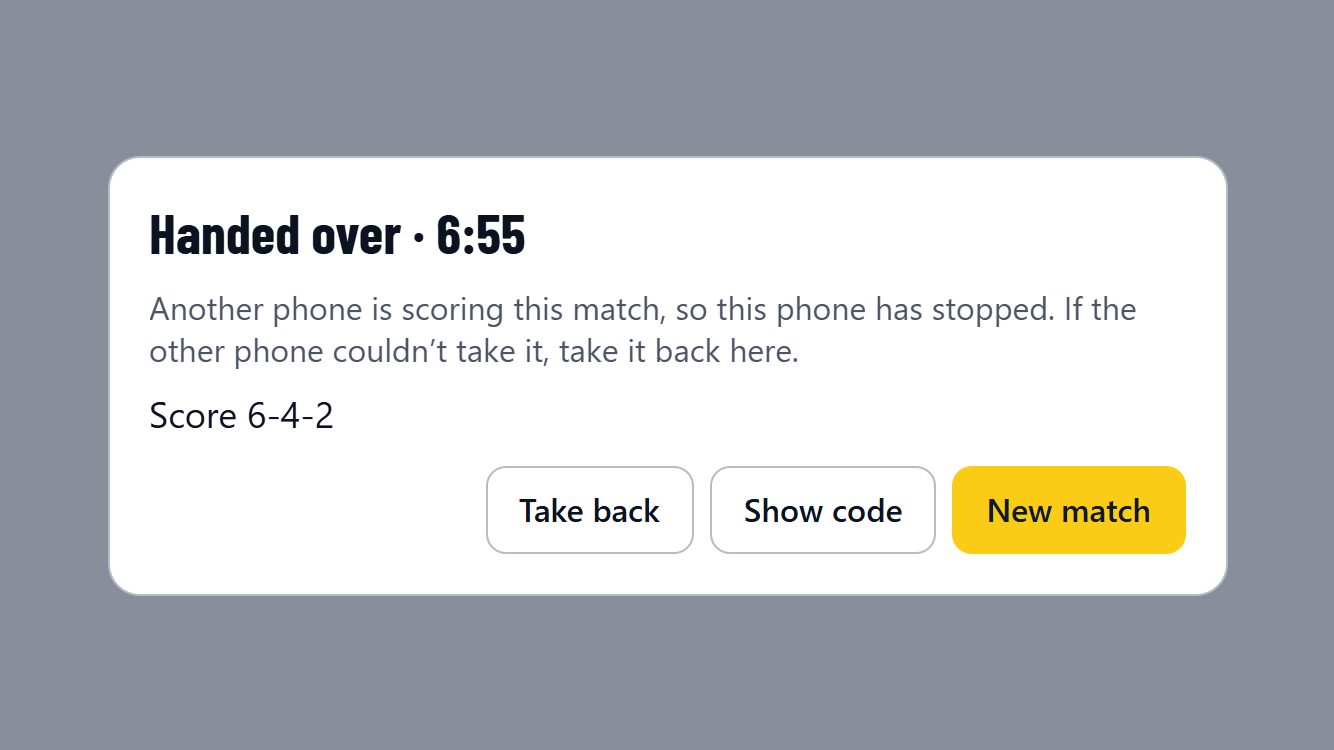
- Tap Handed over. Your phone stops scoring the match: the other phone has it.
The match is still suspended on the other phone. When play restarts, its referee checks the score, the server and the time-outs left with the players, as the panel lists them, and taps Resume play.
If it didn’t work
- The code won’t scan, or the link won’t open: the other phone needs signal to open the scorer. Tap Show code and try again.
- The other phone couldn’t take it: tap Take back to carry on here. Only do this if the other phone hasn’t recorded anything: what it recorded isn’t on your phone.
- New match starts afresh on your phone. The handed-over match isn’t kept here, as the other phone has it.
- No Hand over button: it needs a recent browser. Update the phone’s browser.
- On iPhone, the camera app opens the link in Safari, so the match would continue there. Scan it with Scan at the top of the other phone’s match setup instead.
4. The result
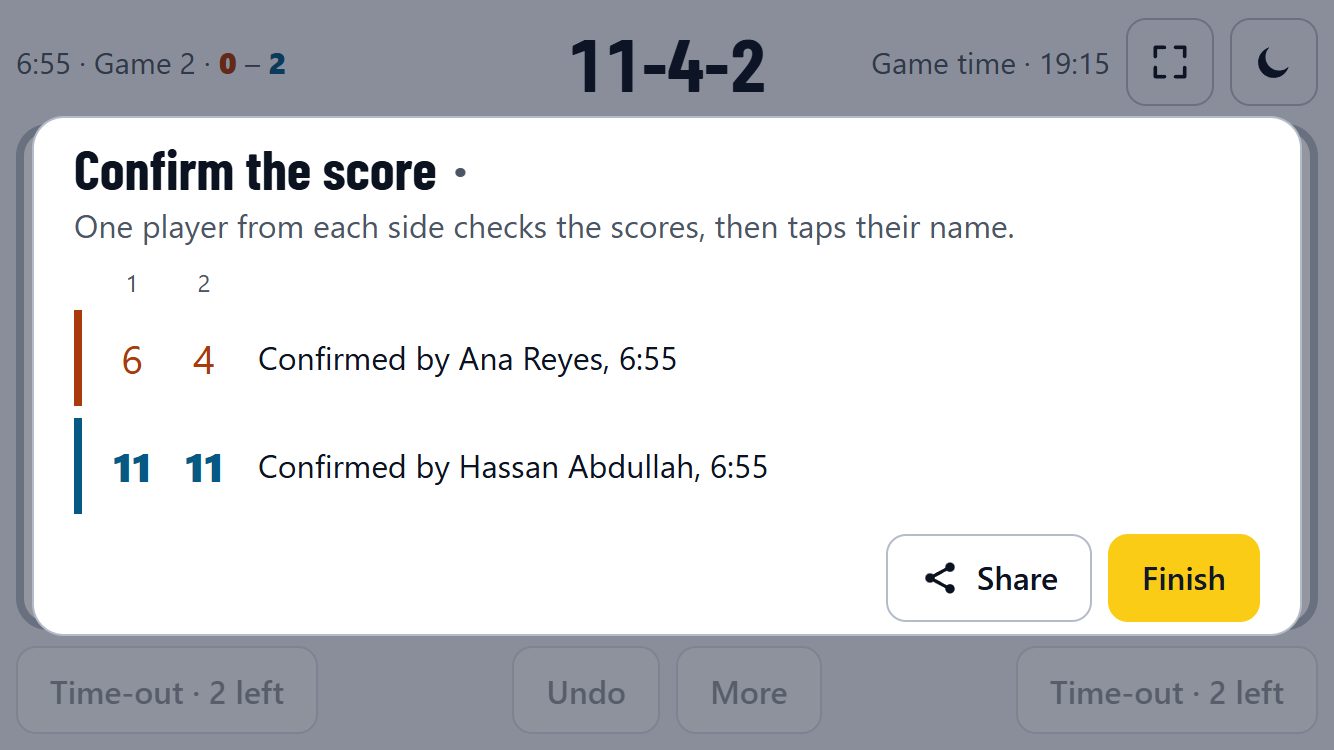
- When the match is won, tap Confirm with players and hand the phone over.
- One player from each team checks the scores and taps their name. This takes the place of their initials on a paper scoresheet.
- If they say the score is wrong, tap The score is wrong and correct it with Undo. If a team won’t or can’t confirm, tap Didn’t confirm and pick the team.
- Once both teams have confirmed, the result is settled. Tap Share to send it to the desk (see below), then Finish.
Sharing the result
Share opens your phone’s share menu: pick the app and the chat your TD uses, such as a WhatsApp group. The result goes as text:
RY · MD 3.5 · Ct 3 · QF
Wed 4 Nov, 10:02–10:41
Hassan Abdullah & Mei Ling Tan beat Ana Reyes & Bryan Lim
11–6, 11–4
Confirmed by both teams
- Where your browser has no share menu, the result is copied instead: paste it into the chat.
- Once shared, the match shows Shared with the time, so you can see which results have gone. It means the result reached the app you picked; check the chat that it was sent.
- Forgot? Share it later from Recent matches.
5. Afterwards
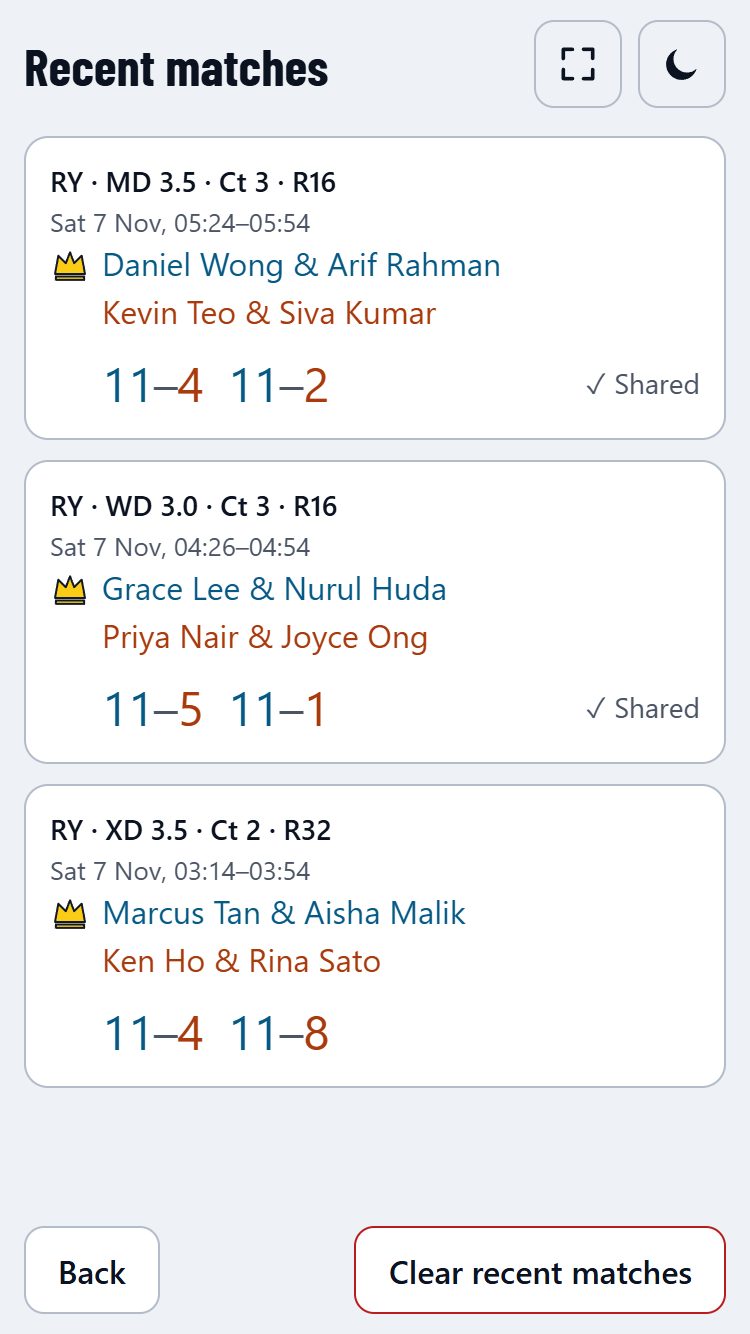
- Recent on match setup lists your last 30 matches: the label, when it was played, who won and each game’s score, and whether you shared it.
- Tap a match for each game’s length, who confirmed, any disputes, the full Rally history, Analysis (see Match analysis) and Share.
- They’re kept only on this phone. See where your matches are kept for what clears them.
For tournament directors
Referees score on their own phones, and each phone keeps its own matches: nothing is sent to you unless a referee shares it. A little setup gets every result to your desk in one place.
Before the event
- Make a results chat for the desk and the referees, such as a WhatsApp group, so results arrive in one thread rather than from each referee separately.
- Decide what goes in the match label so you can match each result to your draw. Put what changes least first and what changes most last, for example: referee’s initials · category · court · round (RY · MD 3.5 · Ct 3 · QF). A referee reuses their last label with one tap, then changes only the end, usually just the round. Keep it short.
- Key in the teams on your own phone, so referees needn’t type names: tap List beside Players on match setup, then paste them one team a line (Priya Nair / Joyce Ong), from your entry list or a spreadsheet. If your teams have names, put the name first: Smash Bros: Priya Nair / Joyce Ong. The names go to referees with the teams, and come back in the results. In singles, one player a line.
- Brief the referees: the label, sharing every result once both teams confirm, and the phone checklist (Before a match).
Sending each court its teams
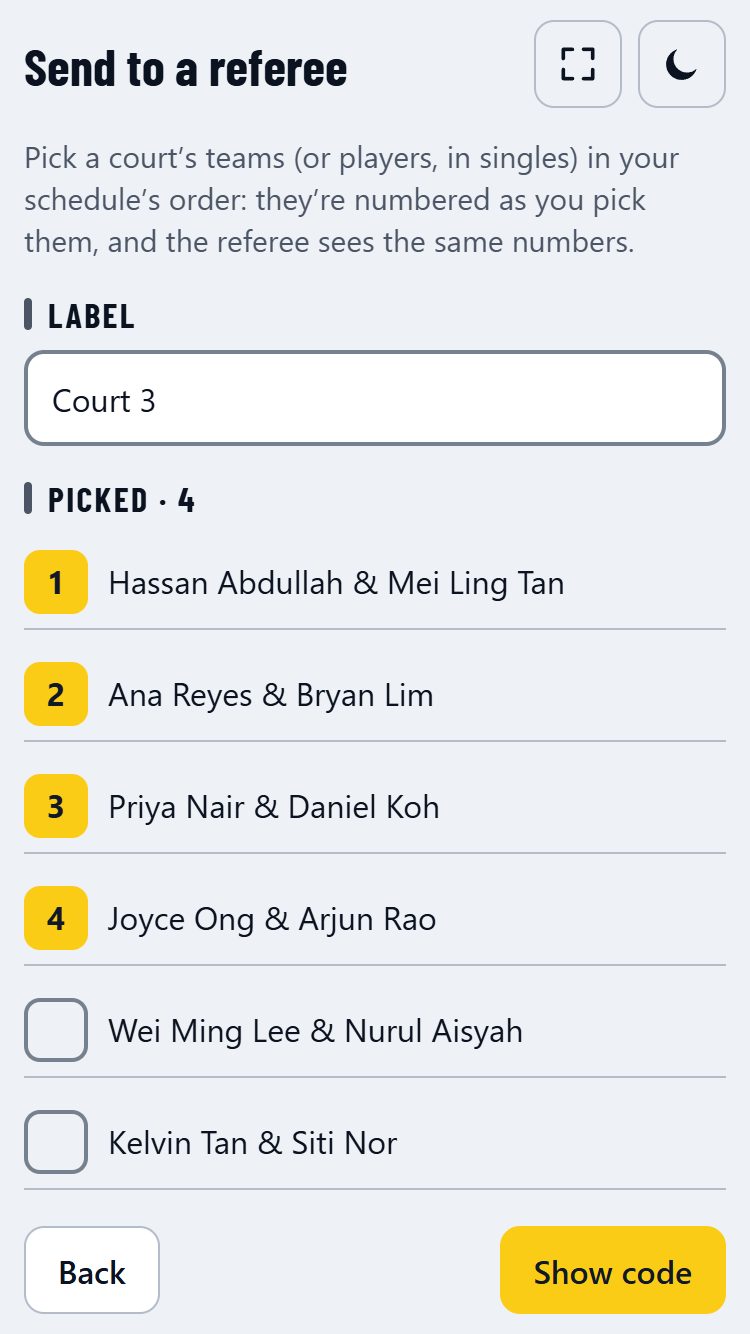
- On the day, tap List beside Players, then Send to a referee. Give it a label, such as Court 1.
- Tap that court’s teams in the order of your schedule: each gets the number you’d use on it (1, 2, 3…), and the referee sees the same numbers, so “Match 1: 1 v 2” is two taps for them.
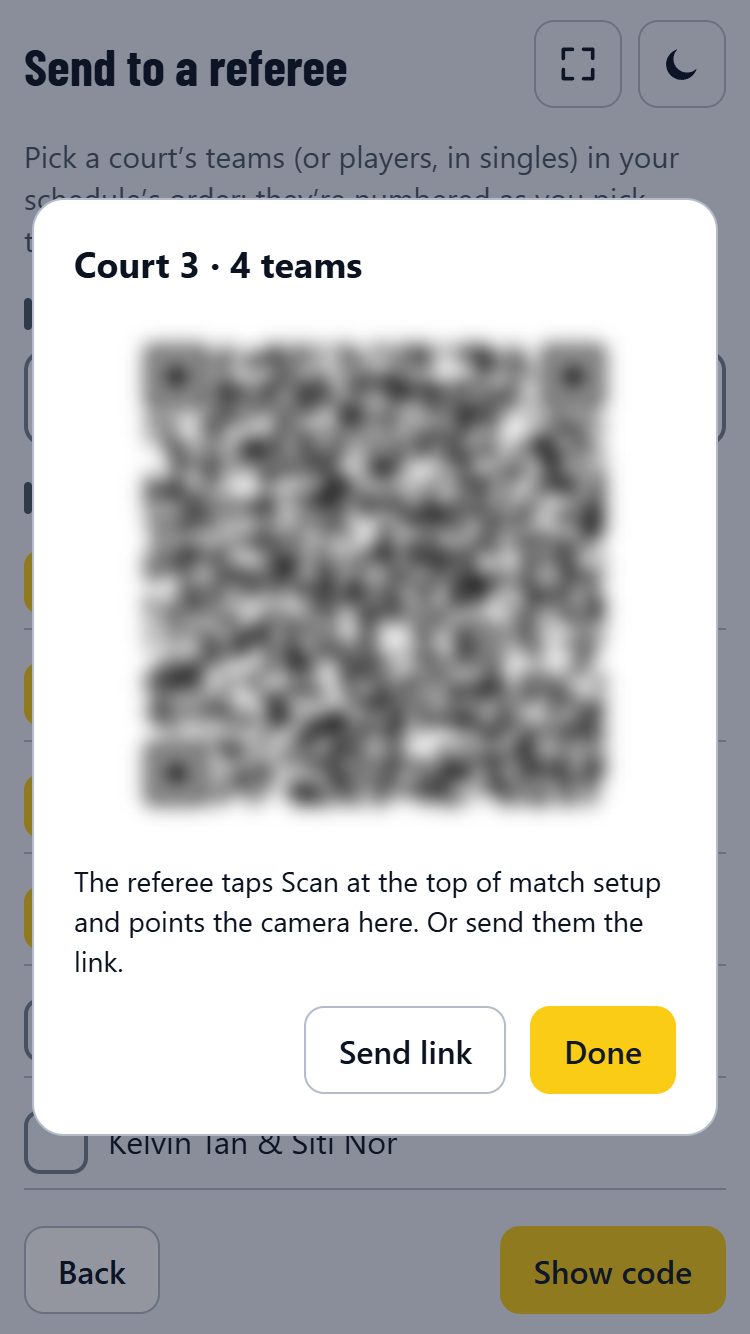
- Tap Show code. The court’s referee taps Scan at the top of match setup and points their phone at it. Or tap Send link to send it in a message. Then Done, and the next court.
Sending a whole match
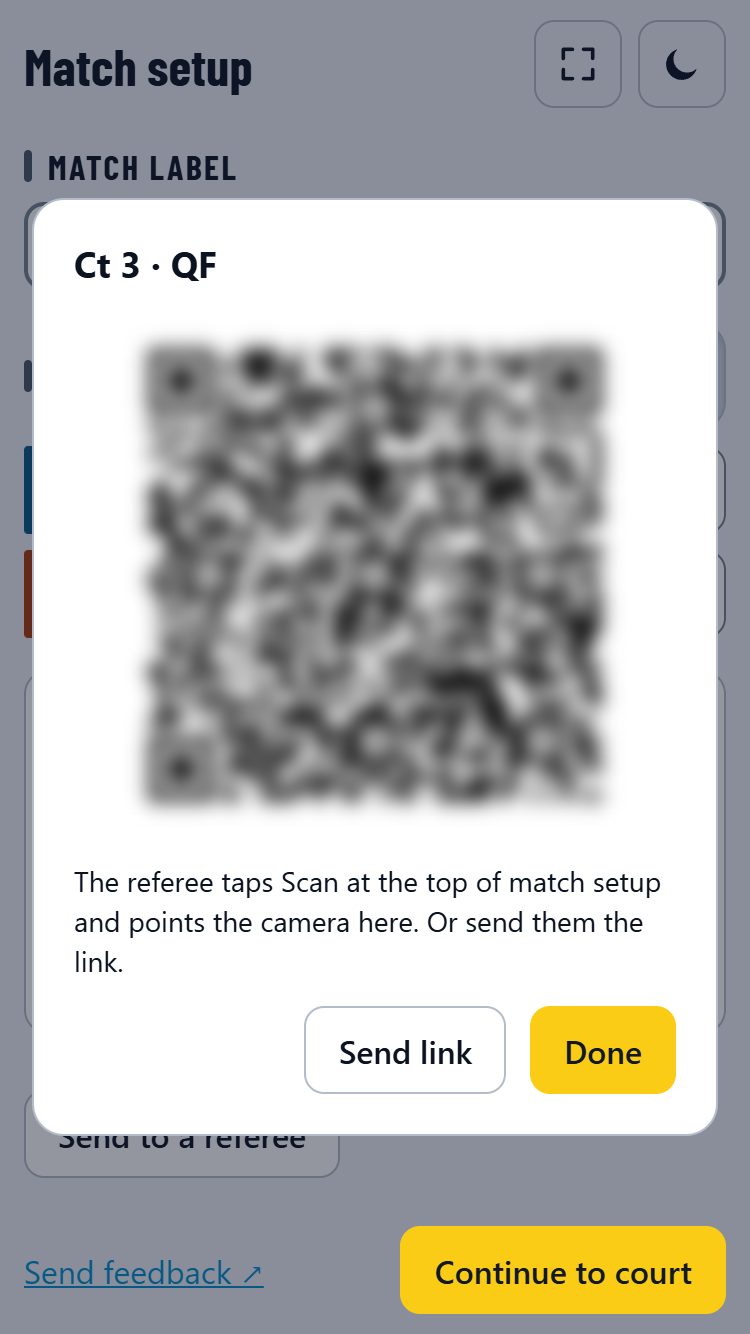
For a match you call from the desk, such as a knockout, set the whole match up on your own phone: on match setup, the label (Ct 3 · QF), the two teams (from your player list) and the format. Then tap Send to a referee, under the match settings, rather than Continue to court. The referee scans the code with Scan and has only to check it and tap Continue to court; they can’t start it on the wrong format. Send link sends it in a message instead. After Done your match setup stays as it was, ready for the next match’s label and teams.
Code or link? When the referee is with you, show the code: one scan, and you see it arrive. When they’re at their court, tap Send link and send it by WhatsApp or the like (not a photo of the code: they can’t scan their own screen). The message says how to open it. A referee whose scorer is on an iPhone home screen should copy the link, open the scorer, tap Scan and paste it: tapping it opens Safari, which keeps its own matches, so the match wouldn’t be in their scorer.
Teams and matches go from your phone to the referee’s in the code itself: nothing is uploaded.
A brief to send your referees
Edit it to suit, then send it to your results chat:
Scoring today:
1. Before the day: open play.bikote.app/score
   and add it to your home screen.
2. At the desk, scan your court's code for your teams:
   Scan, at the top of match setup.
   For a match the desk calls, scan its code too.
   If the desk sends a link instead: copy it,
   then Scan and paste it.
3. Match label: your initials · category · court · round, e.g. RY · MD 3.5 · Ct 3 · QF
4. After the match, both teams confirm on your phone.
5. Then tap Share, and send the result to this chat.
Guide: play.bikote.app/help
For a whole tournament day this way, from the results group to the last result, see Example day.
What arrives at the desk
- One message per match: the label first, then when it was played, who beat whom, the game scores from the winner’s side, and whether both teams confirmed. A retirement or forfeit is noted after the scores. A team with a name is given by its name and players: Smash Bros (Priya Nair & Joyce Ong) beat ….
- A result only reaches you when the referee shares it. If one is missing, ask the referee: it’s in their Recent matches, ready to share.
Questions or suggestions? Use Send feedback on match setup, or email support@bikote.app.